
Viewing ALERT Cameras

ALERT Cameras
The ALERT Camera Viewer allows users to access a system of cameras to monitor fire situations.
To view the cameras, press the ALERT Camera tool.
The Camera Display pop-up screen will appear on the right hand side. You will have access to the cameras from AlertCalifornia or AlertWildfire. Once a camera is selected from the drop down, the real time photo will appear on the Camera Display.
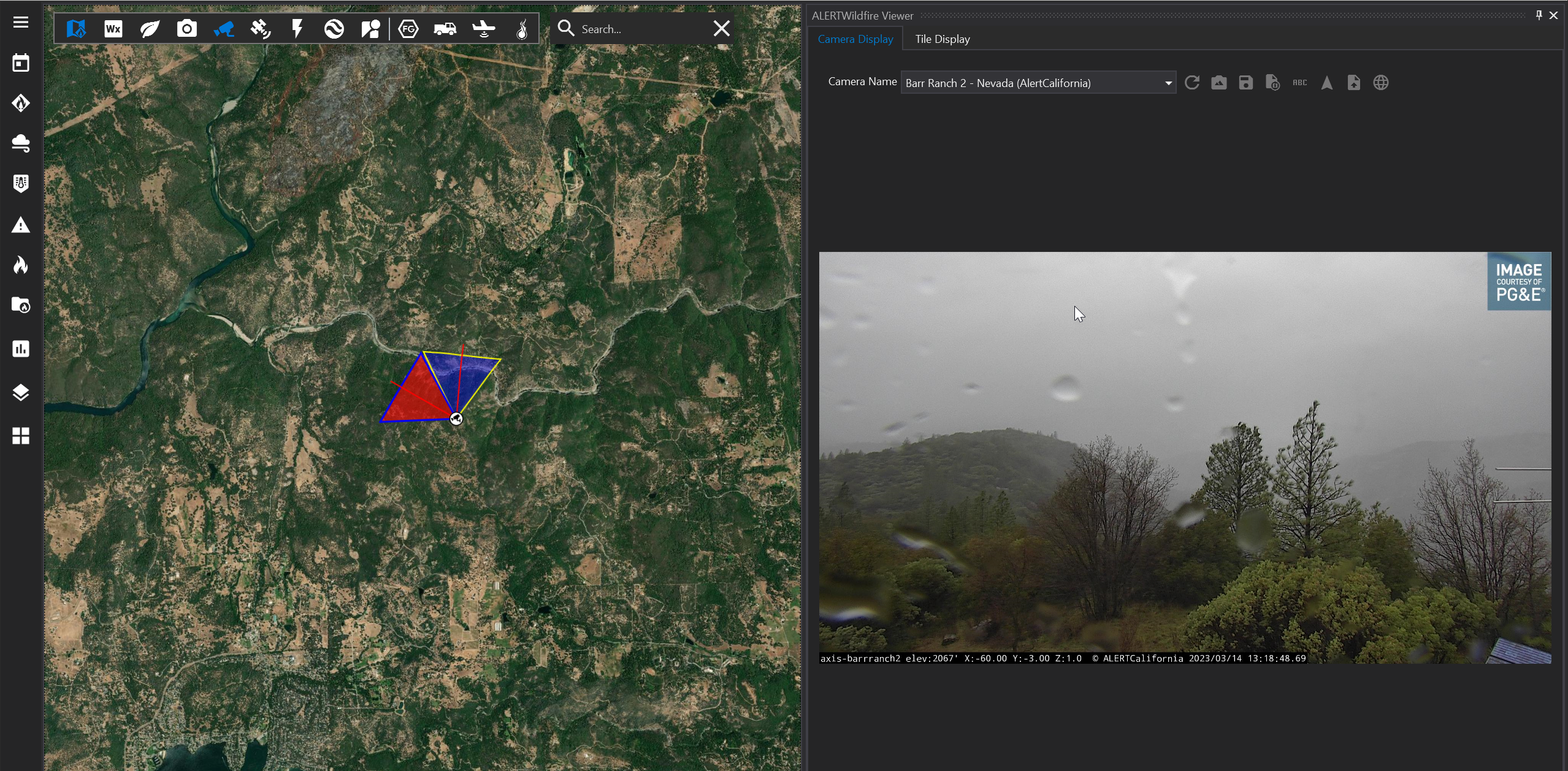

You may increase the page size by dragging the pop-up screen to the left, or decrease the page size by dragging it to the right.
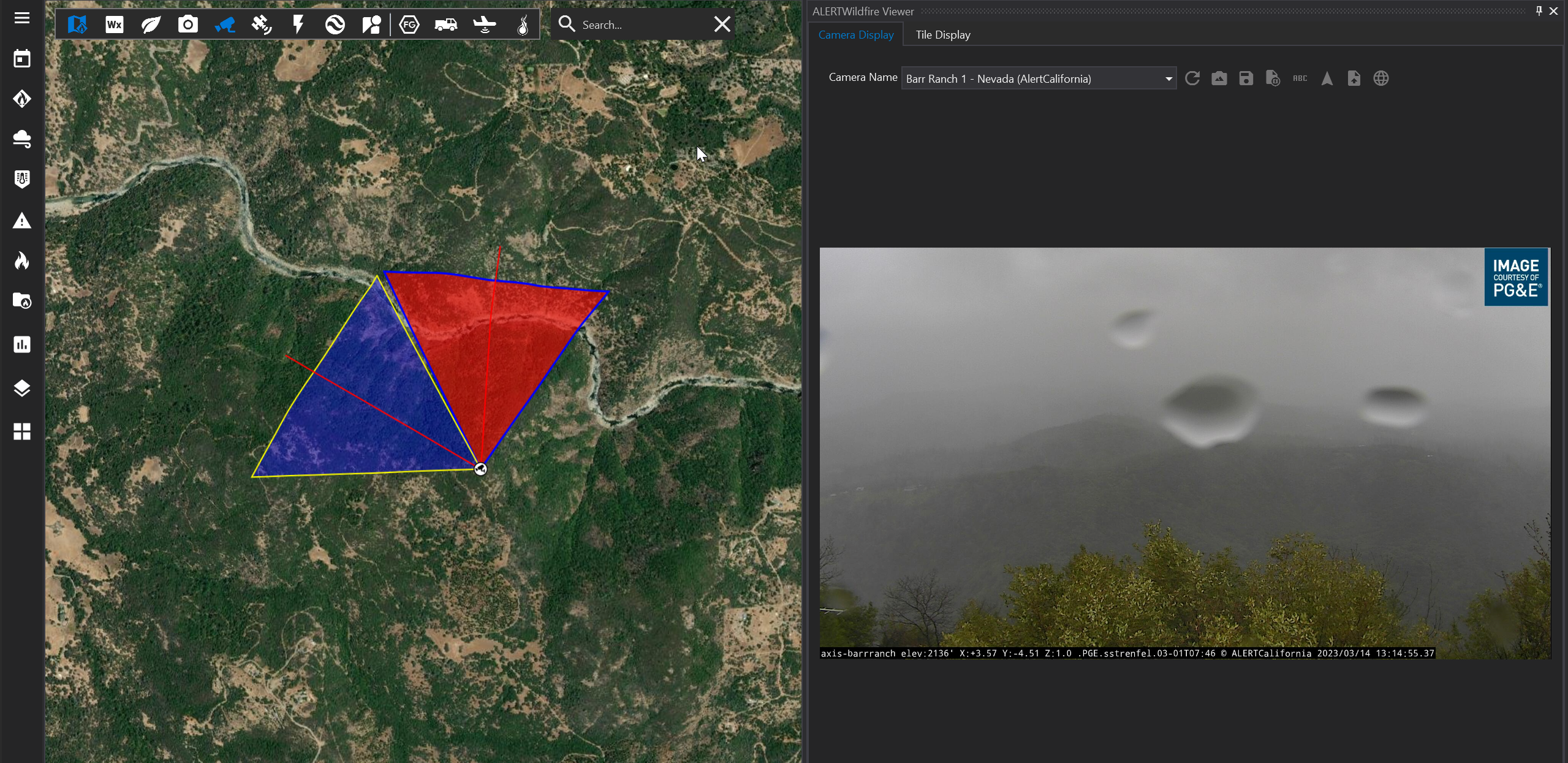
Some cameras may have more than one point of orientation. In the example below, the camera has two points of orientation. You may click on either point of orientation. The selected point will turn red, and the photo will appear on the Camera Display.
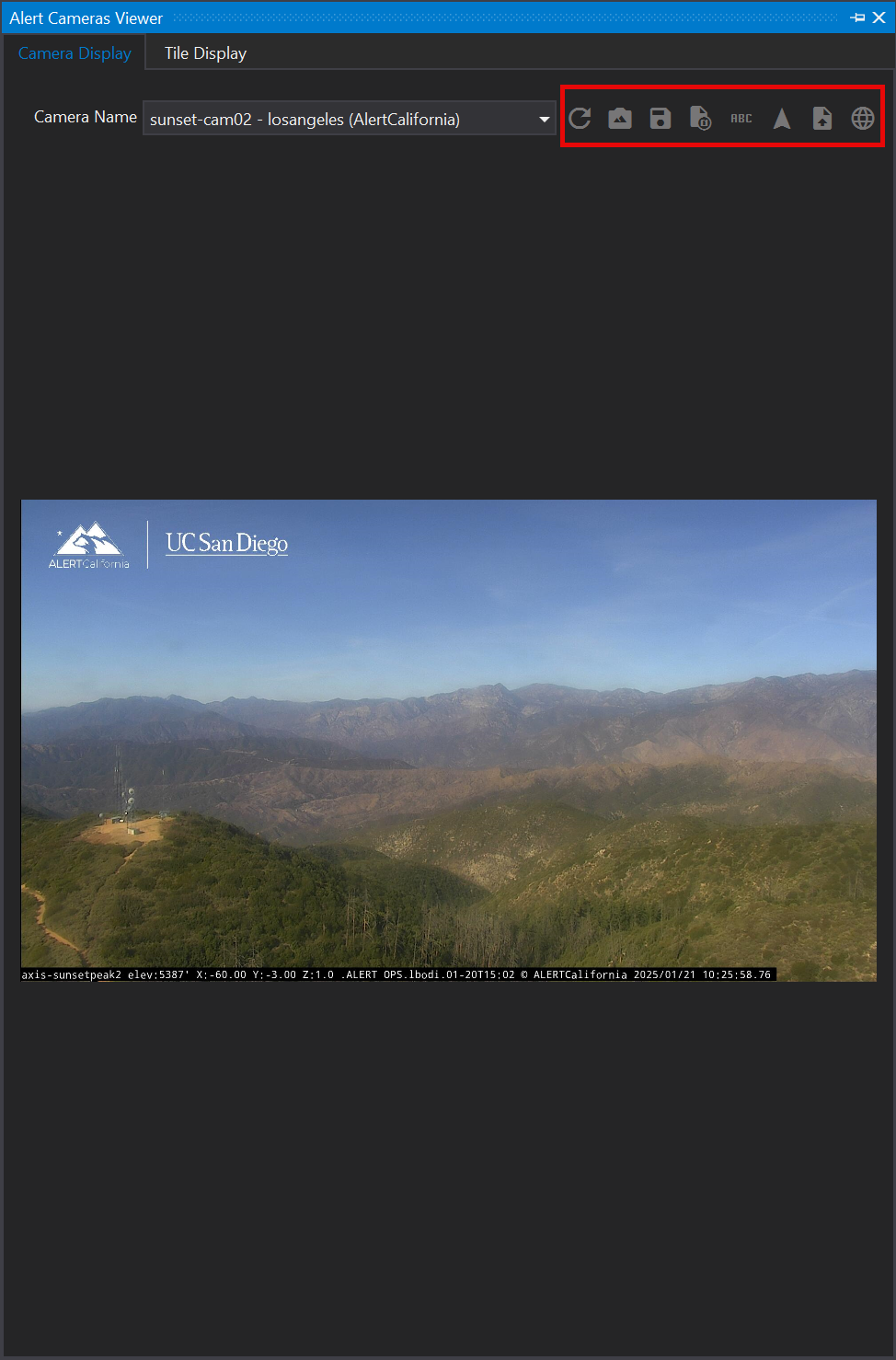
Camera Display - Additional Tools
Tool | Description |
|---|---|
Refresh  | Refresh the list |
View Camera Orientation  | View the camera orientation 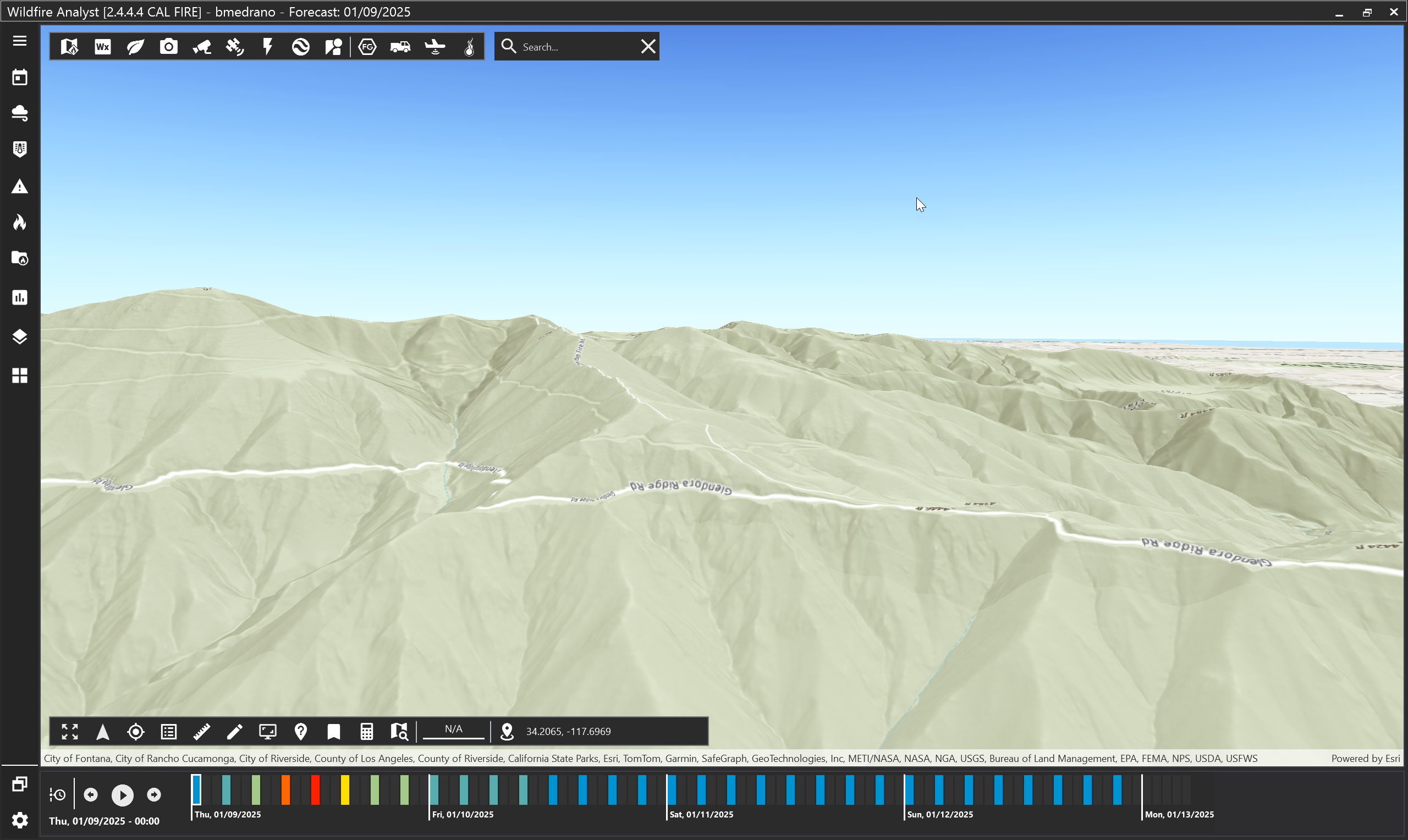 |
Save Image  | Save the image as a .jpg file in the computer’s local files |
Export to KMZ  | Export the file as a KMZ |
Show Labels  | Show/hide camera label and name 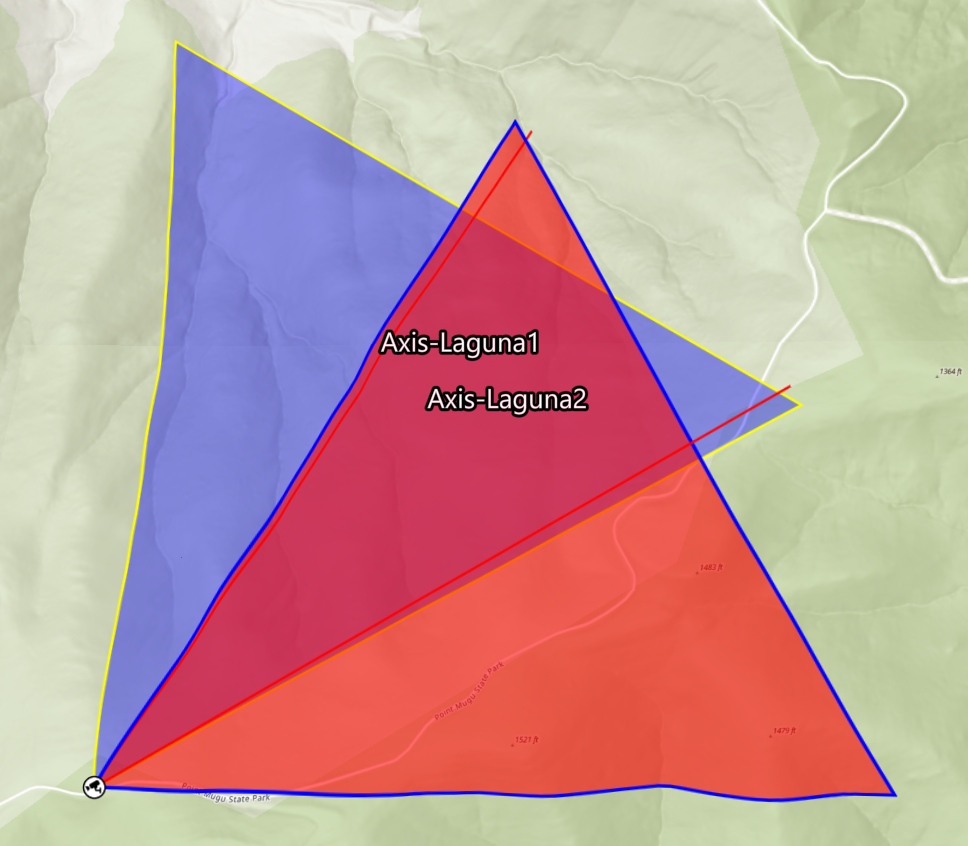 |
Enable Sight Camera Lines  | Turn camera sight lines on/off 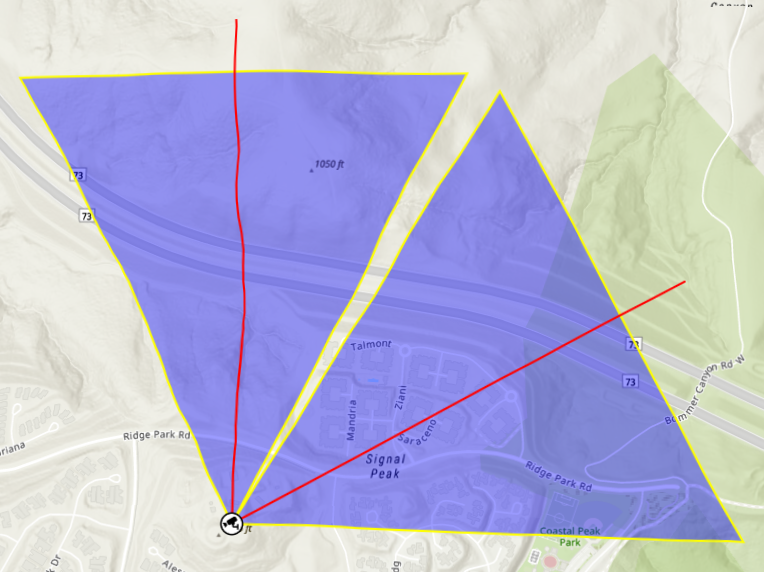 |
Upload Camera Image  | Upload the camera image to an incident or location. |
Open Selected Camera in Web  | Open the camera in web (ALERT California). |